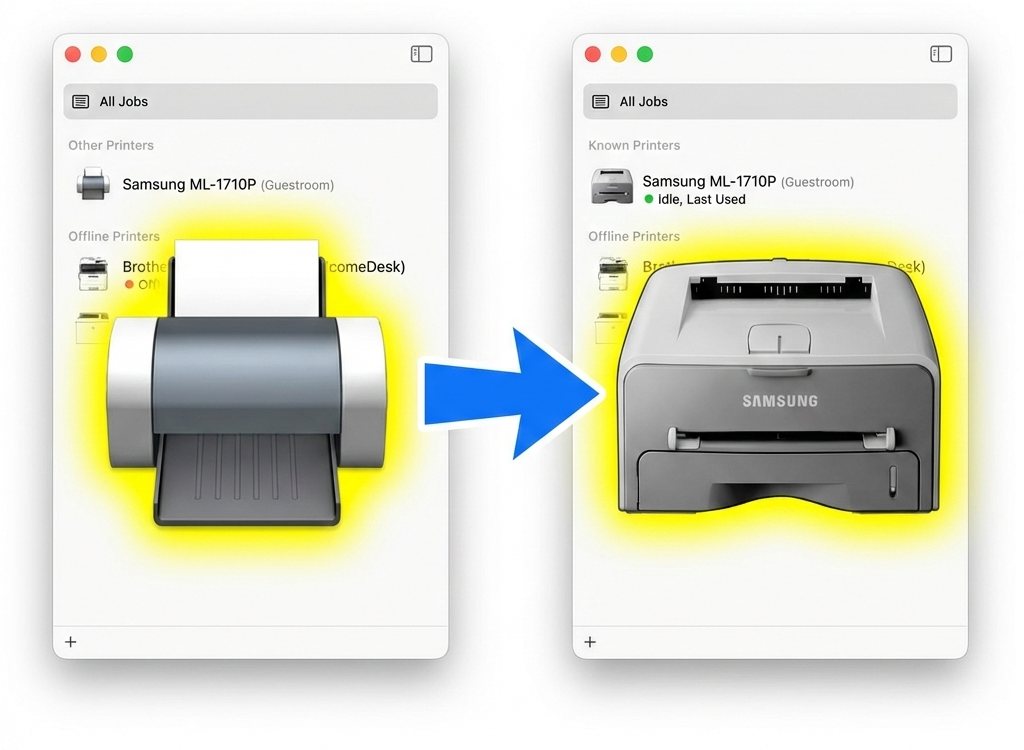
I’ve been using the same printer for the last 20+ years (apparently its firmware was built on my 19th birthday). The last 10+ years, this has been as a networked printer, using AirPrint in its newest configuration. One thing I always felt was missing for this, was the nice printer icons I get when adding work printers. The icon in macOS looks nothing like the printer.

Background
AirPrint is Apple’s implementation of IPP Everywhere, a standard that enables driverless printing. Instead of requiring vendor-specific drivers, IPP Everywhere printers advertise their capabilities over the network, and clients can print using standard protocols.
The discovery mechanism relies on DNS-SD (DNS-Based Service Discovery), which you might know by its marketing names: Bonjour (Apple) or Zeroconf. When a printer supports IPP Everywhere, it broadcasts its presence on the local network along with metadata about its capabilities - including a URL to its icon.
This icon URL is part of the printer-icons IPP attribute. When you add a printer on macOS or iOS, the system fetches this icon to display in the Print Center. Enterprise printers typically serve proper icons of themselves, but consumer printers and CUPS-shared printers often show a generic icon - or nothing at all.
How this works in CUPS
Let’s trace through the CUPS source code to understand how printer icons are advertised and served.
Where the icon URL is generated
In scheduler/ipp.c:4973-4977, CUPS constructs the printer-icons attribute URL:
httpAssembleURIf(HTTP_URI_CODING_ALL, uri, sizeof(uri),
    is_encrypted ? "https" : "http", NULL,
    con->clientname, con->clientport,
    "/icons/%s.png", printer->name);
ippAddString(con->response, IPP_TAG_PRINTER, IPP_TAG_URI, "printer-icons", NULL, uri);
This advertises URLs like: http://hostname:631/icons/PRINTERNAME.png
Where the icon is served from
In scheduler/client.c:1294-1315, the get_file() function handles requests for /icons/:
else if ((!strncmp(con->uri, "/icons/", 7) || !strncmp(con->uri, "/printers/", 10) ||
          !strncmp(con->uri, "/classes/", 9)) && !strcmp(con->uri + strlen(con->uri) - 4, ".png"))
{
    // Extract printer name from URL
    strlcpy(dest, strchr(con->uri + 1, '/') + 1, sizeof(dest));
    dest[strlen(dest) - 4] = '\0'; /* Strip .png */

    // Look up the printer
    if ((p = cupsdFindDest(dest)) == NULL)
    {
        // Printer not found - return 404
        return (NULL);
    }

    // Look for icon in CacheDir/images/
    snprintf(filename, len, "%s/images/%s.png", CacheDir, p->name);

    // Fallback to generic icon if printer-specific icon doesn't exist
    if (access(filename, F_OK) < 0)
        snprintf(filename, len, "%s/images/generic.png", DocumentRoot);
}
The key insight: for /icons/PRINTERNAME.png, CUPS first looks for the file at CacheDir/images/PRINTERNAME.png. If that doesn’t exist, it falls back to DocumentRoot/images/generic.png.
Testing the advertised URL
We can verify what CUPS advertises using ipptool:
$ ipptool -t -v ipp://Parklife.local:631/printers/Samsung_ML-1710P get-printer-attributes.test | grep icon
        printer-icons (uri) = http://Parklife.local:631/icons/Samsung_ML-1710P.png
But when we try to access that URL:
$ curl "http://parklife:631/icons/Samsung_ML-1710P.png"
<!DOCTYPE HTML PUBLIC "-//W3C//DTD HTML 4.01 Transitional//EN" "http://www.w3.org/TR/html4/loose.dtd">
<HTML>
<HEAD>
    <META HTTP-EQUIV="Content-Type" CONTENT="text/html; charset=utf-8">
    <TITLE>Not Found - CUPS v2.4.16</TITLE>
    <LINK REL="STYLESHEET" TYPE="text/css" HREF="/cups.css">
</HEAD>
<BODY>
<H1>Not Found</H1>
<P></P>
</BODY>
</HTML>
That’s odd. It should show at least a generic fallback icon.
The Debian packaging issue
Since I run CUPS in Docker using the olbat/cupsd image (which is based on Debian stable), I needed to understand how Debian packages CUPS.
The upstream CUPS code has a fallback mechanism. If no custom icon exists, it should serve DocumentRoot/images/generic.png. But on Debian, there’s a mismatch:
| Path | Upstream CUPS expects | Debian packages it as |
|---|---|---|
| DocumentRoot | /usr/share/cups/doc-root |
/usr/share/doc/cups |
| CacheDir | /var/spool/cups/cache |
/var/cache/cups |
On Debian (bookworm), when CUPS tries to serve /icons/PRINTERNAME.png:
- It first checks
CacheDir/images/PRINTERNAME.png→/var/cache/cups/images/PRINTERNAME.png(doesn’t exist) - Falls back to
DocumentRoot/images/generic.png→ may not exist due to Debian’s packaging differences
This explains the 404 error - even the fallback path doesn’t work correctly on Debian.
We can verify this by manually creating the directory and copying an icon. The cups-server-common package includes /usr/share/cups/doc-root/images/cups.png which we can use:
sudo mkdir -p /var/cache/cups/images
sudo cp /usr/share/cups/doc-root/images/cups.png /var/cache/cups/images/Samsung_ML-1710P.png
And it works! The icon now appears when accessing the URL.
The solution
Now that we understand the issue, the fix is straightforward. We just need to mount the custom icon file at the path where CUPS expects it. Using Docker volumes, this is automatically handled on container start.
Here’s how to extend the olbat/cupsd setup with custom icons:
services:
  cupsd:
    image: olbat/cupsd:latest
    ports:
      - "631:631"
    volumes:
      # D-Bus for Avahi/AirPrint discovery
      - /var/run/dbus:/var/run/dbus
      # USB printer support
      - /dev/bus/usb:/dev/bus/usb
      # Custom printer icon
      - ./icons/Samsung_ML-1710P.png:/var/cache/cups/images/Samsung_ML-1710P.png:ro
This mounts the custom icon from my local icons/ directory directly into the container at the exact path where CUPS looks for printer icons. The :ro suffix makes it read-only, which is good practice for static files.
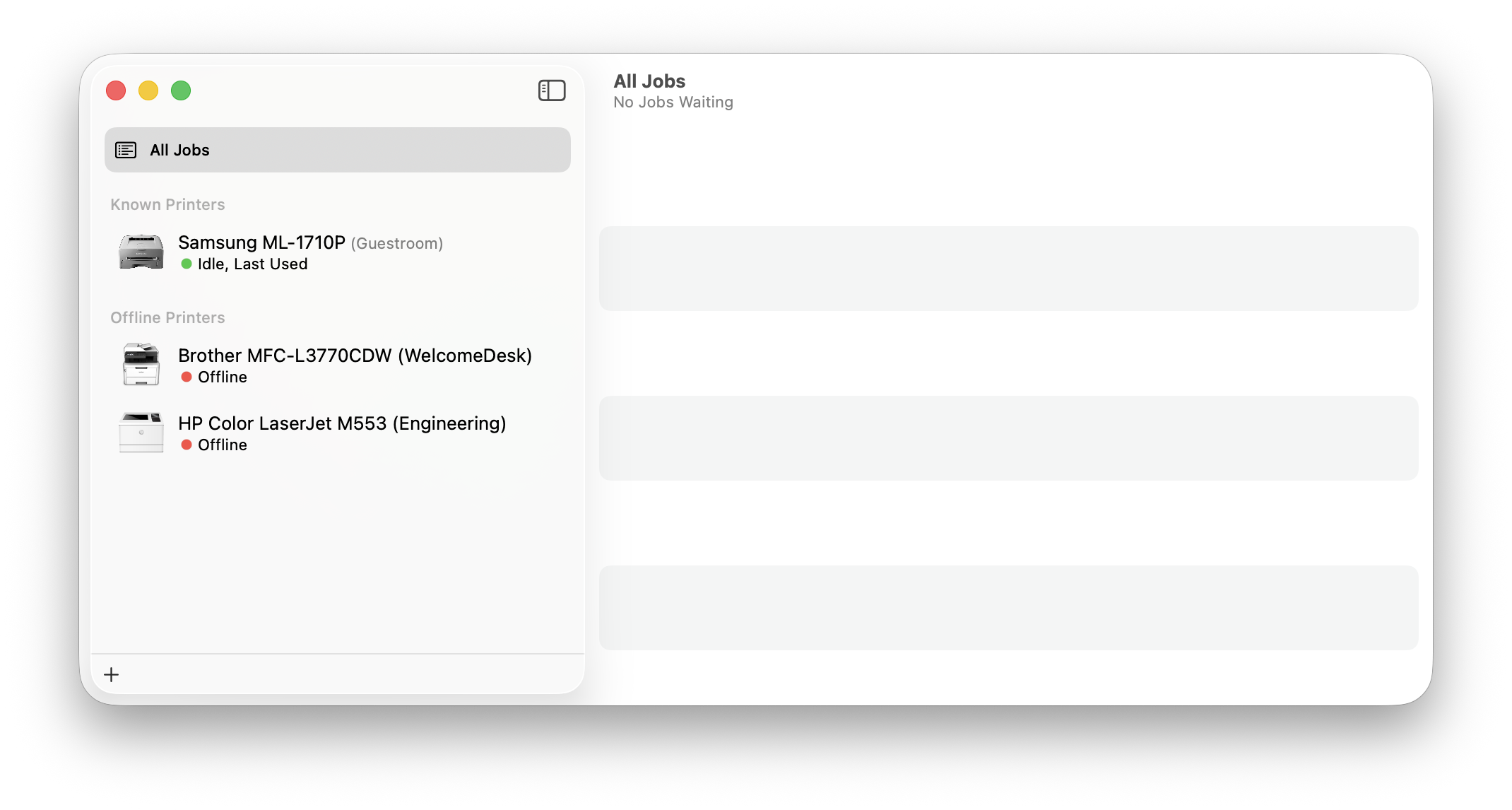
After restarting the container, the printer icon is now served correctly and appears in the macOS Print Center:
Appendix: Creating the icon
Creating a custom printer icon turned out to be the fun part. I wanted something that actually looks like my Samsung ML-1710P.
I started with this mess of reference photos:

Plenty of pictures online, but no high-quality product photography - not surprising for a 20+ year old printer.
I fed these to Gemini Nano Banana Pro and asked it to generate a clean, icon-style rendering of the printer. It produced a surprisingly good result - all I had to do was remove the background in GIMP using the fuzzy select tool.
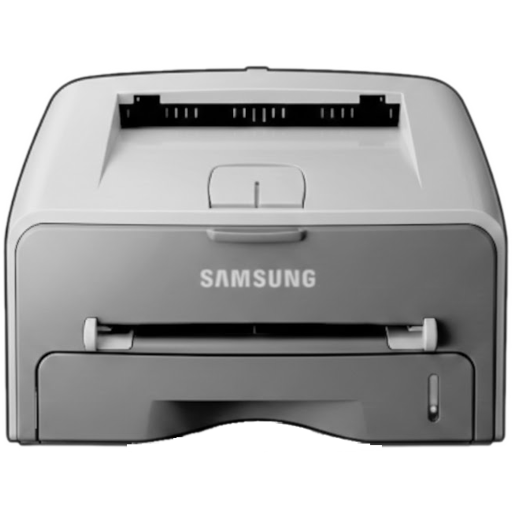
The resulting icon is now displayed correctly in the Print Center, giving my 20-year-old printer a proper identity on the network.